
Huawei
Time: globisoftware
On: Jan/07/2026
Category: Huawei iphone samsung Digital life
Few things are more frustrating than plugging in your laptop charger and realizing your battery percentage isn’t moving or is still dropping. Whether you rely on your laptop for work, study, or travel, charging issues can interrupt productivity and cause unnecessary stress. The good news is that most laptop charging problems have clear causes and practical solutions. Before assuming your laptop or charger is broken, it’s worth understanding the common reasons behind these issues and how to fix them.
Common Reasons for Your Laptop Charger Not Working as Expected
Laptop charging problems can stem from hardware, software, or power compatibility issues. The points below walk through the most common causes and what you can do about each one.
Loose or Damaged Cables and Ports
One of the simplest explanations is also the most common. Charging cables experience frequent bending, pulling, and packing, which can damage internal wiring over time. A loose connection at the USB-C or charging port may interrupt power flow, causing intermittent charging. Inspect your cable for fraying and check whether the plug fits securely. Trying another compatible cable or charger can quickly confirm whether the issue is cable-related.
Insufficient Power Output from the Charger
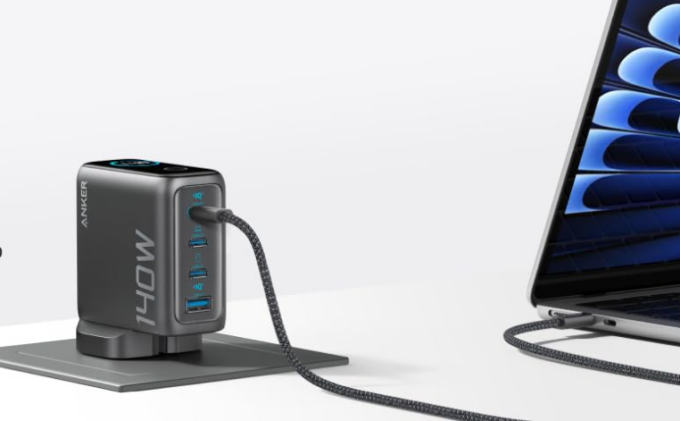
Not all chargers are created equal. Many modern laptops require 65W, 100W, or even higher power input, especially during use. Using a low-wattage charger, such as a phone charger, may result in very slow charging or no charging at all. High-output USB-C chargers, like Anker’s 100W or 140W laptop chargers, are designed to meet these power demands and can charge laptops efficiently even while they’re in use.
Incompatible Charging Standards
Some laptops require specific charging protocols, such as USB Power Delivery (PD). If your charger doesn’t support the correct standard, the laptop may not accept power properly. Reputable chargers that follow PD standards ensure better compatibility across devices. This is especially important when switching to compact GaN chargers, which are smaller but still need to match your laptop’s charging requirements.
Overheating and Safety Cutoffs
If your charger or laptop becomes too warm, charging may slow down or stop temporarily as a safety measure. This can happen when charging on soft surfaces, in hot environments, or with poorly ventilated chargers. Advanced chargers with built-in temperature monitoring, like the laptop charger using Anker’s ActiveShield technology, help prevent overheating by adjusting power output in real time.
Laptop Battery Health Issues
An aging or damaged battery can also be the culprit. Over time, laptop batteries lose capacity and may charge inconsistently or very slowly. If your laptop only charges to a certain percentage or drains quickly after unplugging, the battery itself may need servicing or replacement. Checking battery health in your system settings can provide useful clues.
Software or Firmware Problems
Sometimes the issue isn’t physical at all. Outdated operating systems, BIOS versions, or power management drivers can interfere with charging behavior. Restarting your laptop, updating system software, or resetting power settings can often resolve these glitches. In some cases, unplugging the charger, shutting down the laptop, and reconnecting after a few minutes can reset the charging circuit.
Using the Wrong Charging Port
Many laptops now include multiple USB-C ports, but not all of them support charging. Plugging into a data-only port may result in no power delivery. Check your laptop’s documentation or port icons to ensure you’re using the correct charging-enabled port.
Conclusion
When your laptop charger isn’t charging properly, the problem is often easier to fix than it first appears. From damaged cables and insufficient wattage to overheating and software issues, identifying the root cause is key. Using a reliable, high-output charger that matches your laptop’s requirements can make a significant difference. By checking connections, power compatibility, and battery health, you can restore stable charging and keep your laptop ready whenever you need it.